




Step 1. Sharing a connection with your xbox!
Step 2. Setting up the Server!
Step 3: Setting up Your tunables.json file to edit
Okay. so to start. you want to share a connection with your xbox.
Set up Windows Internet Connection Sharing
The following steps show Windows 7 screen image. However, the steps are the same for earlier versions of Windows, unless otherwise indicated.
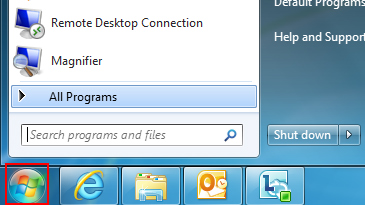
Click the Start button.
In the Search programs and files box, type ncpa.cpl, and then press ENTER.
For Windows XP: Click the Start button, click Run, type ncpa.cpl in the Open box, and then click OK.
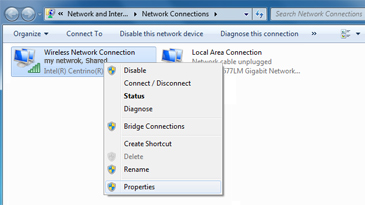
Right-click the network connection that you want to share, and then click Properties. The appropriate network connection to share is the one between your computer and your modem, not the one between your computer and your Xbox 360 console.
Click the Sharing tab. If you are using Windows XP, select the Advanced tab.
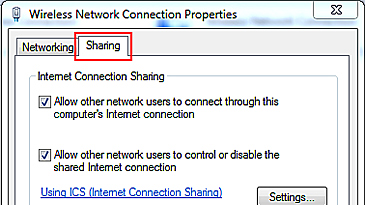
Select Allow other network users to connect through this computer's Internet Connection, and then click OK.
Wait for the network connection status to change to Shared.
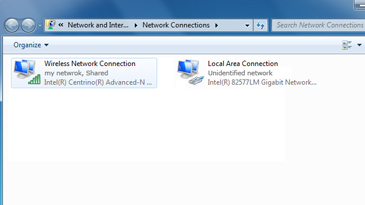
Start your web browser, and try to connect to the Internet. If you cannot connect to the Internet, make sure that you are sharing the primary Internet connection in step 3.
Plug one end of the Ethernet cable into the network port on your computer. Plug the other end of the network cable into the back of your Xbox 360 console.
On your Xbox 360 console, make sure that all network settings are set to Automatic.
Here's how:
Note If you are connecting to a wireless network, or if you have PPPoE settings entered, note the settings because you might have to enter them later.
Press the Guide button on your controller, go to Settings, and then select System Settings.
Select Network Settings.
Select Wired Network if you are prompted to do so.
Select the Additional Settings tab.
Select Restore to Factory defaults.
Test your Xbox Live connection. To do this, follow these steps:
Press the Guide button on your controller, go to Settings, and then select System Settings.
Select Network Settings.
Select Wired Network if you are prompted to do so.
Select Test Xbox Live Connection.
This was from xbox.com not my own tut.
Set up Windows Internet Connection Sharing
The following steps show Windows 7 screen image. However, the steps are the same for earlier versions of Windows, unless otherwise indicated.
Click the Start button.
In the Search programs and files box, type ncpa.cpl, and then press ENTER.
For Windows XP: Click the Start button, click Run, type ncpa.cpl in the Open box, and then click OK.
Right-click the network connection that you want to share, and then click Properties. The appropriate network connection to share is the one between your computer and your modem, not the one between your computer and your Xbox 360 console.
Click the Sharing tab. If you are using Windows XP, select the Advanced tab.
Select Allow other network users to connect through this computer's Internet Connection, and then click OK.
Wait for the network connection status to change to Shared.
Start your web browser, and try to connect to the Internet. If you cannot connect to the Internet, make sure that you are sharing the primary Internet connection in step 3.
Plug one end of the Ethernet cable into the network port on your computer. Plug the other end of the network cable into the back of your Xbox 360 console.
On your Xbox 360 console, make sure that all network settings are set to Automatic.
Here's how:
Note If you are connecting to a wireless network, or if you have PPPoE settings entered, note the settings because you might have to enter them later.
Press the Guide button on your controller, go to Settings, and then select System Settings.
Select Network Settings.
Select Wired Network if you are prompted to do so.
Select the Additional Settings tab.
Select Restore to Factory defaults.
Test your Xbox Live connection. To do this, follow these steps:
Press the Guide button on your controller, go to Settings, and then select System Settings.
Select Network Settings.
Select Wired Network if you are prompted to do so.
Select Test Xbox Live Connection.
This was from xbox.com not my own tut.
Step 2. Setting up the Server!
Okay to start this you are going to want to download and install ZoneAlarm. Once that is done Click on View Details on your firewall. Under Basic Firewall click on settings. Then click on Advanced Settings. Click onto the View Zones tab on the top left and add 3 ranges and one IP address. The three IP Ranges you add are
65.55.42.1 - 65.55.42.255
134.170.179.1 - 134.170.179.255
134.170.178.1 - 134.170.179.255
and the one IP address you add is
5.66.12.150
Make sure they are all trusted!!
The end result of the Firewall settings should look somewhat like this:

Next what we are going to do is be editing your Host File.
Navigate to C:\Windows\System32\drivers\etc
Make sure to open the Host file with notepad. Not the Host.ics file!
Copy and paste these
5.66.12.150 prod.cloud.rockstargames.com
5.66.12.150 prod.ros.cloud.rockstargames.com
[YOUR COMPUTERS IP ADDRESS] prod.cloud.rockstargames.com
into the bottom of the text document and hit save!
Should look something like this:

Now to check if you have done everything correctly copy and paste this into your internet browser prod.cloud.rockstargames.com and you should be Greeted with a welcome message!
65.55.42.1 - 65.55.42.255
134.170.179.1 - 134.170.179.255
134.170.178.1 - 134.170.179.255
and the one IP address you add is
5.66.12.150
Make sure they are all trusted!!
The end result of the Firewall settings should look somewhat like this:
Next what we are going to do is be editing your Host File.
Navigate to C:\Windows\System32\drivers\etc
Make sure to open the Host file with notepad. Not the Host.ics file!
Copy and paste these
5.66.12.150 prod.cloud.rockstargames.com
5.66.12.150 prod.ros.cloud.rockstargames.com
[YOUR COMPUTERS IP ADDRESS] prod.cloud.rockstargames.com
into the bottom of the text document and hit save!
Should look something like this:
Now to check if you have done everything correctly copy and paste this into your internet browser prod.cloud.rockstargames.com and you should be Greeted with a welcome message!
Step 3: Setting up Your tunables.json file to edit
To start this you need to download WebServer. Once that is downloaded extract it to your desktop. Once that is done Open usbwebserver. Go over to settings tab and change the Root Dir to \WebServer\root\titles\gta5\xbox360 and change the Port Apache to 80! This is very important!!! Then click save.
Step 4: Port Forwarding 80!
First you are going to need access to your router.
Go to http://www.routerpasswords.com/ and find your Username + Password.
Open a webbrowser and type in your router's IP ADDRESS (Usually 192.168.1.1) It varies, Just google your model.
Find some where along the lines of Secruity, or Connection.
Click Single Port Forwarding
Add in this as a new set:
Name: [WHAT EVER YOU WANT]
external port: 80
internal port: 80
Protocol: TCP (NOT BOTH)
ip address: [LOCAL IPADDRESS]
To find your PC's IP Address, Go to Start>Search>CMD>Type in: ipconfig and press enter
Near the top it should say "IPv4 Address..[LOCAL IPADDRESS]".
Save it and log out of your router.
This PortForwarding Tut was made by JWNJWN
Go to http://www.routerpasswords.com/ and find your Username + Password.
Open a webbrowser and type in your router's IP ADDRESS (Usually 192.168.1.1) It varies, Just google your model.
Find some where along the lines of Secruity, or Connection.
Click Single Port Forwarding
Add in this as a new set:
Name: [WHAT EVER YOU WANT]
external port: 80
internal port: 80
Protocol: TCP (NOT BOTH)
ip address: [LOCAL IPADDRESS]
To find your PC's IP Address, Go to Start>Search>CMD>Type in: ipconfig and press enter
Near the top it should say "IPv4 Address..[LOCAL IPADDRESS]".
Save it and log out of your router.
This PortForwarding Tut was made by JWNJWN
Step 5: Editing your Tunables.json file!!
Now that you have set up everything it is time to Get some cash and some xp!! You are going to want to close and reopen usbwebserver. click on root dir then click on titles then gta 5 then xbox 360 and open your Tunables.json with notepad. Press Ctrl+F and search for what you want to edit Eg. XP_Multiplier or CASH_Multiplier and change that. Save the file and click on the apache tab. Click on Start if it is not already. Then turn on your xbox and Load GTA 5 online Kill someone and look at the money and xp BOOM!
Credits: JWNJWN